

AFTER THIS LESSON
You will be able to
- Know what every bot action does
- Configure relevant notifications
- Move from a message to the chart and web interface
PRACTICE ON REAL SCREENS
IXOR and exchange examples
Interfaces and live market values may change. Use each screen to understand what to verify, not as a current trade setup.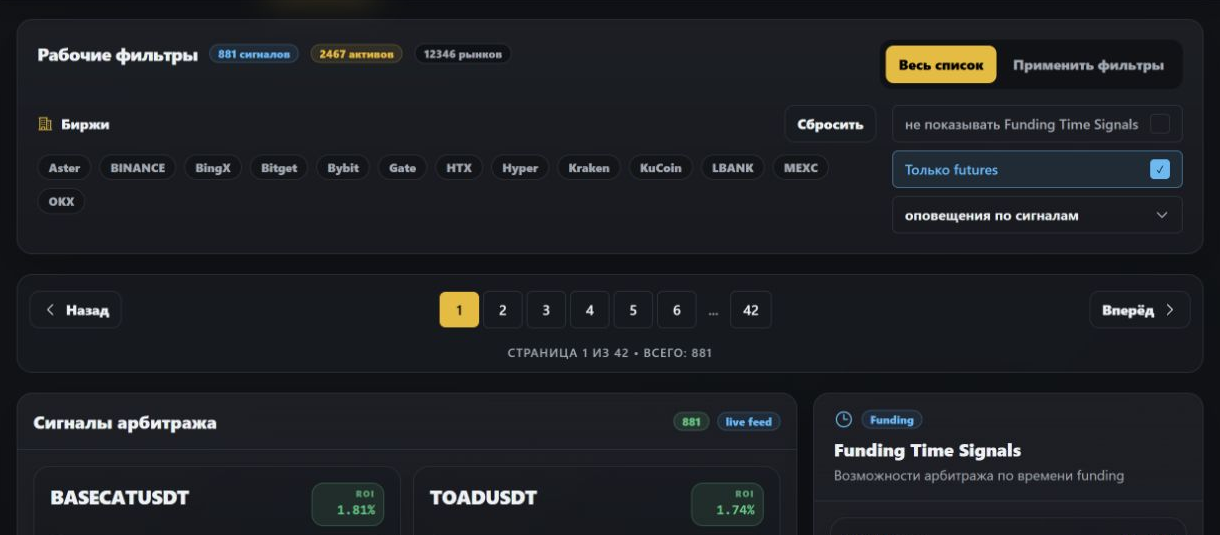
One screen combines exchange and market-type selection, the user's filter set, and the current signal feed.
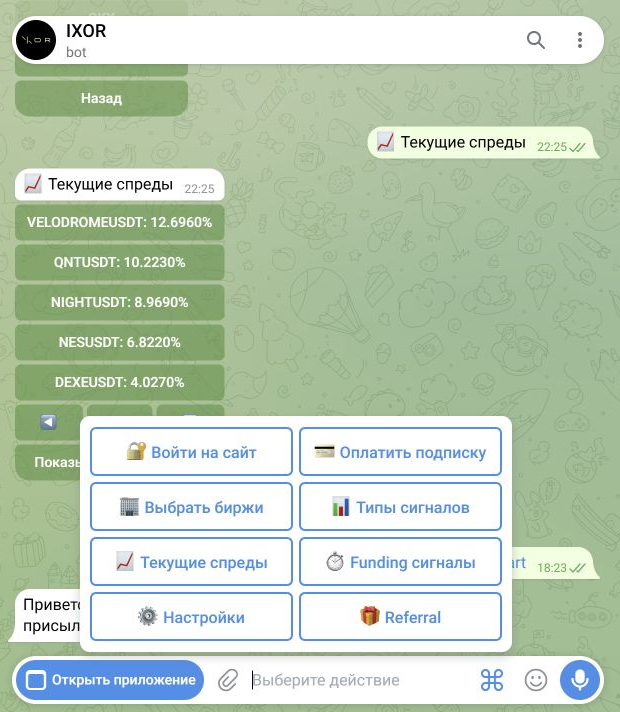
The menu provides website login, subscription, exchanges, signal types, current spreads, funding, settings, and Referral.
Main menu
After /start, the bot creates or finds the account and shows available actions. Without active access, web login, payment, and Referral remain available; market features open with access.
- 🔐 Sign in to website — a one-time login link valid for five minutes.
- 💳 Pay subscription — choose an asset, create an invoice, and check status.
- 🏢 Select exchanges — limit sources for incoming signals.
- 📊 Signal types — select the required market combinations.
- 📈 Current spreads — open the current list manually.
- ⏱ Funding signals — review dedicated funding scenarios.
- ⚙️ Settings — threshold and message constructor.
- 🎁 Referral — recommended exchanges and the personal program.
Notification filters
Choose exchanges and signal types first, then set the minimum spread threshold. The current bot range is above 0.15% and no more than 10%.
- An empty or overly broad exchange set increases noise.
- “Show by filters” applies to the manually opened current-spreads list.
- A filter reduces message volume but does not validate risk for the user.
Signal constructor
Settings control fields shown in notifications and manual views. Keep essential fields: pair, ROI/spread, both exchanges and sides, prices, size, funding/countdown, fees, and warnings.
- Preview shows the final format before new notifications arrive.
- Average prices and size are required for executability checks.
- Do not hide warnings merely to shorten the message.
Actions inside a signal
From a message, you can refresh the selected signal, open all current spreads for the token, and open the route chart in MiniApp/web. Sell/Buy exchange names link to the relevant markets.
- 🔄 Refresh — request a fresh card for the selected route.
- 📊 All spreads — compare other routes for the token.
- 📈 Chart — review spread and convergence history.
- The funding card links funding view with token ROI/pricing.
Account, subscription, and Referral
The /auth command and login button create a short-lived web-account link. Payment creates a dedicated on-chain invoice; Referral combines exchange partner links and personal referral statistics.
- Invoice status can be refreshed from the payment card.
- After payment confirmation, access synchronizes with the account.
- Referral shows invited users, confirmed payments, and available rewards.
- Detailed history and reward actions are available in the web account.
PRACTICE
Low-noise setup
Choose 3–5 familiar exchanges, the required futures routes, a threshold above the minimum, and keep all validation fields in the card. Then open Current spreads and one chart before enabling a broad notification stream.
? Show answer
Answer: A sound result is a narrow set of familiar exchanges and route types, a deliberate threshold, and a card that retains warnings, fees, funding, countdown, average prices, and size. Before broadening notifications, inspect Current spreads and at least one signal chart; if the feed is noisy, narrow the filters first.
Lesson checklist
- I used the one-time web login link without forwarding it.
- Exchanges, signal types, and threshold are deliberately configured.
- Warnings, fees, funding, and depth context remain in the card.
- I can open refresh, all spreads, and the chart.
Common mistakes
- Forwarding the five-minute login link to another person.
- Hiding essential fields merely to shorten the card.
- Treating filters as automatic signal-quality validation.
Progress is recorded automatically when this section appears on screen.